

Clear Calls Anywhere: USB Wired Headset for PC & Laptops
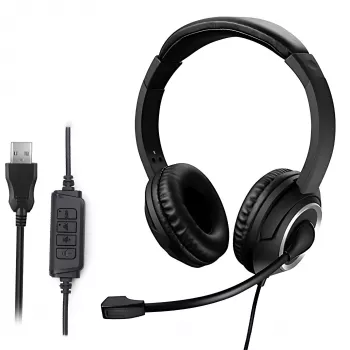
Clear audio matters when every call counts. A USB wired headset with a noise-cancelling microphone helps reduce background distractions, keeps speech intelligible, and simplifies setup on PCs and laptops—ideal for customer support desks, remote work, online classes, and busy home offices.
What This USB Wired Headset Is Best For
- Call center and customer support: A consistent, wired connection and stable voice pickup help keep conversations clear through long shifts.
- Remote meetings and video calls: Speech stays easier to understand when typing sounds, HVAC fans, or nearby office chatter are present.
- Online learning and tutoring: Fewer interruptions improve comprehension for both the speaker and the listener.
- Shared workstations: USB plug-and-play reduces time spent troubleshooting audio ports, splitters, or mismatched jacks.
- Travel and temporary setups: No charging needed—just plug into an available USB port and work.
Key Features That Improve Call Quality
- USB connection: Straightforward compatibility with most computers and many docking stations—helpful in standardized office environments.
- Noise-cancelling microphone design: Built to reduce common ambient noise and emphasize the speaker’s voice so callers hear you more clearly.
- Wired reliability: Avoids wireless dropouts, pairing quirks, and battery-related interruptions mid-call.
- Designed for long sessions: When consistency matters more than maximizing mobility, a wired headset is often the simplest choice.
- Predictable behavior for workflows: Call centers and support teams often prefer devices that behave the same way every time they’re connected.
Compatibility and Setup on PC and Laptop
Most USB headsets are ready within seconds: plug in, confirm the device is selected, and run a quick test call. For step-by-step system guidance, see Microsoft Support for Windows sound troubleshooting or Apple Support for changing sound settings on Mac.
- Connect and select: Plug the headset into a USB port, then set it as the default input/output device in your system sound settings.
- Confirm inside your app: In Zoom, Teams, or softphone tools, select the same headset for both microphone and speaker to prevent “wrong device” issues.
- Use a reliable port: If a laptop has limited ports, a powered USB hub can reduce intermittent connections, especially with multiple peripherals attached.
- Fix a quiet microphone: Increase input level (mic gain) in system settings and disable conflicting audio enhancements that can suppress volume.
- Stop audio from playing on laptop speakers: Set the headset as the default playback device so call audio routes correctly.
Comfort and Fit for Long Shifts
- Stable headband fit: A secure fit reduces constant readjustments during calls, which can also shift mic position.
- Balanced clamping force: The goal is “secure, not squeezing,” helping reduce pressure hotspots over time.
- Consistent mic placement: A microphone that stays where you set it supports even voice volume from call to call.
- Breaks still matter: For all-day use, short, scheduled breaks help reduce fatigue regardless of headset style.
- Lightweight wired feel: Without a battery, many wired headsets feel less bulky than some wireless models.
Quick Comparison: USB Wired vs. 3.5 mm and Wireless
Connection type has a real impact on day-to-day reliability—especially when you’re working across shared desktops, docking stations, or compliance-focused environments.
| Option | Best for | Trade-offs |
|---|---|---|
| USB wired headset | PC/laptop calling, shared workstations, call center desks | Less freedom to move; depends on USB port availability |
| 3.5 mm wired headset | Mixed device use, basic setups with headphone/mic jacks | May need adapter/splitter; quality depends on device audio jack |
| Wireless headset | Moving around during calls, flexible workspaces | Battery, pairing issues, and potential interference |
Recommended Products
For teams that need predictable audio, simple onboarding, and a practical backup option, these in-stock picks can help round out a workstation setup.
-
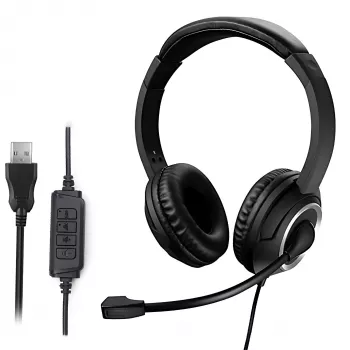
USB Wired Headset with Noise Cancelling Microphone for PC, Laptop & Call Center:
A budget-friendly option designed for clearer voice pickup and straightforward USB connectivity—well-suited to remote work, training rooms, and support desks. -
Your Vacation Capsule Wardrobe Checklist – Travel Light & Stylish (Digital Download):
Useful for frequent travelers building a repeatable packing system—handy for work trips where you also need a dependable plug-and-play headset in your bag. -
LED-Lit Round Frameless Smart Bathroom Mirror – Anti-Fog, 3-Color Lighting:
A home upgrade that supports polished “on-camera” routines—helpful when your workday starts with video calls and you want consistent lighting options.
Care, Maintenance, and Troubleshooting Tips
- Protect the cable: Keep the USB plug and cable strain-relieved (avoid sharp bends) to reduce intermittent connection issues.
- Clean regularly: Wipe ear contact areas and the microphone boom with a gentle cleaner—especially important for shared environments.
- Reduce background pickup: If callers hear noise, move the mic closer to your mouth and reduce input gain slightly so the mic isn’t “listening” as broadly.
- Not detected? Try another USB port, restart the calling app, and re-check system sound settings. If needed, reboot to refresh audio services.
- Echo complaints: Lower speaker volume, confirm the headset is the active output device (not laptop speakers), and avoid positioning the mic in the direct path of speaker output.
FAQ
Will a USB headset work on both a PC and a laptop?
Yes in most cases—plug it into a USB port, then select it as the input and output device in your system sound settings and inside your calling app.
Does a noise-cancelling microphone remove all background noise?
No. It typically reduces steady, common ambient sounds and focuses more on your voice, but loud or sudden noises can still come through; mic placement and input level settings make a big difference.
Why can others hear an echo on calls?
Echo is often caused by high speaker volume, the wrong audio device being selected, or the microphone picking up speaker output. Lower the volume, select the headset for both input/output, and reposition the mic.











Leave a comment