

Netflix on a Smart Projector: 4 Easy Ways to Watch
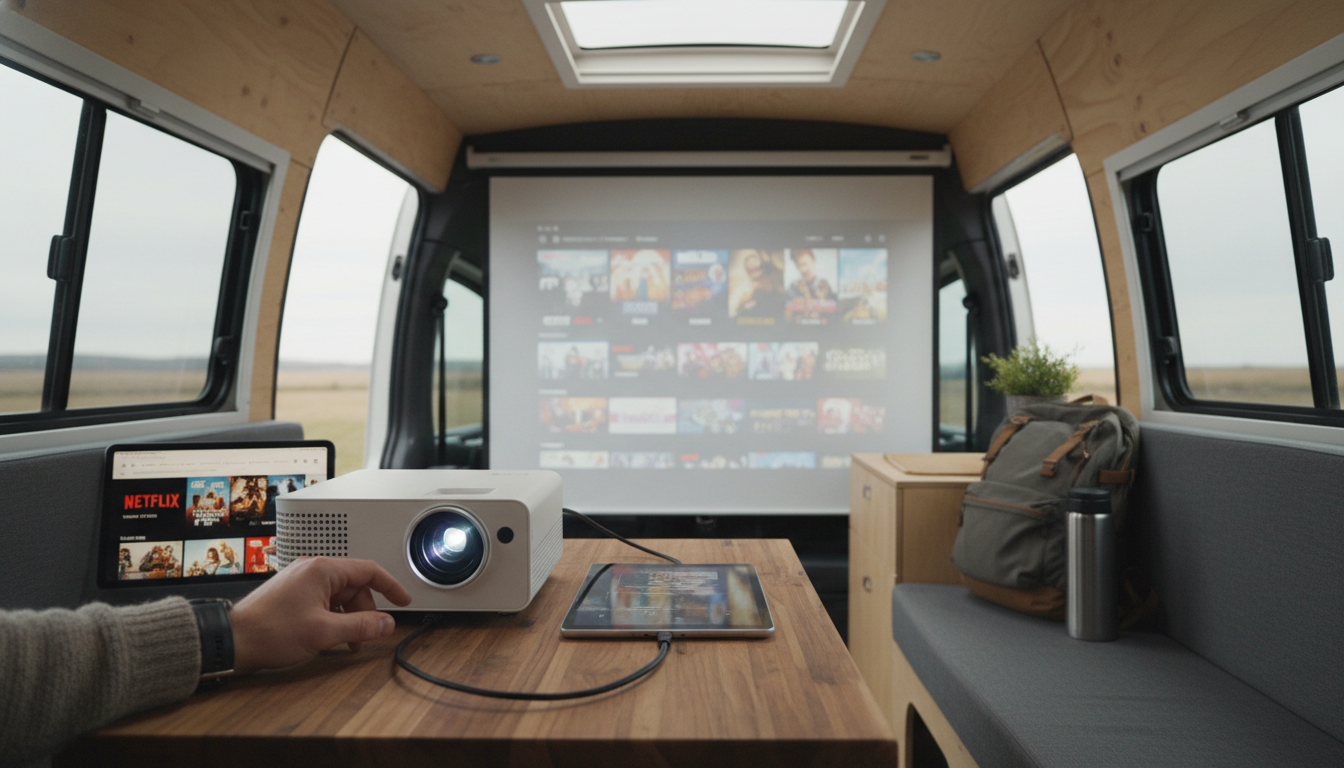
How to get Netflix on a smart projector?
Getting Netflix on a smart projector depends on what operating system the projector runs and what Netflix allows on that platform. Some “smart” projectors can install Netflix directly, while others need a streaming device (like a Roku, Fire TV Stick, Apple TV, or Chromecast) to play Netflix smoothly and in full HD.
1) Check if your projector supports Netflix natively
Open the projector’s app store and search for “Netflix.” If you can install the official Netflix app and sign in normally, you’re set. If Netflix isn’t available, or the app is an unofficial version that won’t log in or only plays in low resolution, skip to the streaming-device option below.
2) Use a streaming stick or streaming box (most reliable)
Plug a streaming stick/box into the projector’s HDMI port, then connect it to Wi‑Fi and install Netflix on the streaming device. This approach typically delivers the best compatibility, faster updates, and more consistent video quality than many built-in projector app stores.
If your projector has limited HDMI ports, add a small HDMI switch. For best results, use the projector’s power adapter (not battery mode) and keep the streaming device close to the Wi‑Fi source.
3) Cast Netflix from a phone or laptop (works in a pinch)
If you have Chromecast built-in (or an external Chromecast), you can cast Netflix from the Netflix mobile app. You can also connect a laptop via HDMI and play Netflix in a browser or the Netflix desktop app, letting the projector act as a display.
4) Fix common playback issues (black screen, no sound, buffering)
Black screen or errors can happen due to HDCP copy protection—try a different HDMI cable, a different HDMI port, or switch to a streaming device known for Netflix compatibility. For sound, set the projector audio output correctly (internal speaker, Bluetooth, or AUX/ARC depending on your model). If buffering is an issue, switch to 5 GHz Wi‑Fi, reduce distance from the router, or use an Ethernet adapter if supported.
For projector setup basics—Wi‑Fi, focus, and 4K input tips—see the full guide here: https://hovira.com/guide-1080p-smart-wifi-projector-auto-focus-4k-support-tips/.
FAQ
Why is Netflix not available on my projector’s app store?
Many projectors use modified or uncertified smart TV systems that Netflix doesn’t officially support. Using a Roku, Fire TV Stick, Apple TV, or Chromecast via HDMI is usually the quickest fix.













Leave a comment