

USB Headset Compatibility: Windows, macOS & ChromeOS

How do I know if a USB headset is compatible with Windows, macOS, and ChromeOS?
Start with the simplest rule: most modern USB headsets that are labeled “USB Audio,” “plug-and-play,” or “UAC (USB Audio Class)” will work on Windows, macOS, and ChromeOS without extra drivers. Compatibility issues usually come from special software requirements, older operating systems, or headsets that rely on proprietary drivers for advanced features.
1) Check the product listing for OS support (and what it really means)
Look for explicit mentions of Windows, macOS, and ChromeOS. If the headset claims it “requires software” for basic audio or microphone use, that’s a caution sign—ChromeOS, in particular, won’t run many desktop headset apps. Ideally, the headset should state that it works without drivers for core functions (listening and talking).
2) Confirm it’s using standard USB audio (UAC)
USB Audio Class devices are natively supported by all three platforms. If the documentation mentions UAC 1.0/2.0, “USB Audio,” or “standard USB drivers,” you’re in good shape. If it only advertises features through a dedicated control app, assume those enhancements may be limited on ChromeOS even if basic audio works.
3) Match the connection type to your ports (USB-A vs USB-C)
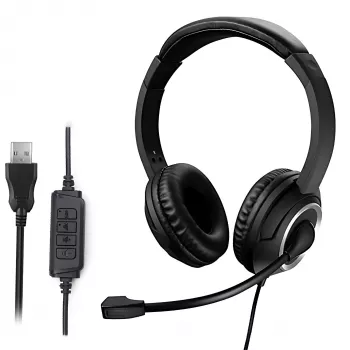
Windows and macOS machines may have USB-A, USB-C, or both; many Chromebooks are USB-C heavy. A USB-A headset can still work on USB-C with a quality adapter, but the safest approach is choosing the connector you’ll actually plug in daily.
4) Watch for call-control and “smart” features
Mute buttons, volume wheels, and inline call controls can behave differently across operating systems and conferencing apps. Even when the headset is compatible, features like answer/end buttons may depend on the specific app (Zoom, Google Meet, Teams) and its permissions.
5) Do a quick real-world verification after plugging in
On each OS, open sound settings and confirm the headset appears as both an output device (speakers) and input device (microphone). Run a test call and verify mic pickup, sidetone (if any), and mute behavior.
For more practical tips on choosing a wired USB headset for clear calls—especially around microphone performance and noise reduction—see the full guide here: https://hovira.com/guide-clear-calls-usb-wired-headset-noise-cancel-mic-pc-laptop/.
FAQ
Will a USB headset work with Zoom, Google Meet, and Microsoft Teams?
Usually yes, as long as the headset is recognized by the operating system as a standard USB audio device. You may need to select it as the microphone and speaker inside the app’s audio settings, and call-control buttons can vary by app.













Leave a comment