

USB Wired Headset on PC/Laptop: No Drivers Needed?
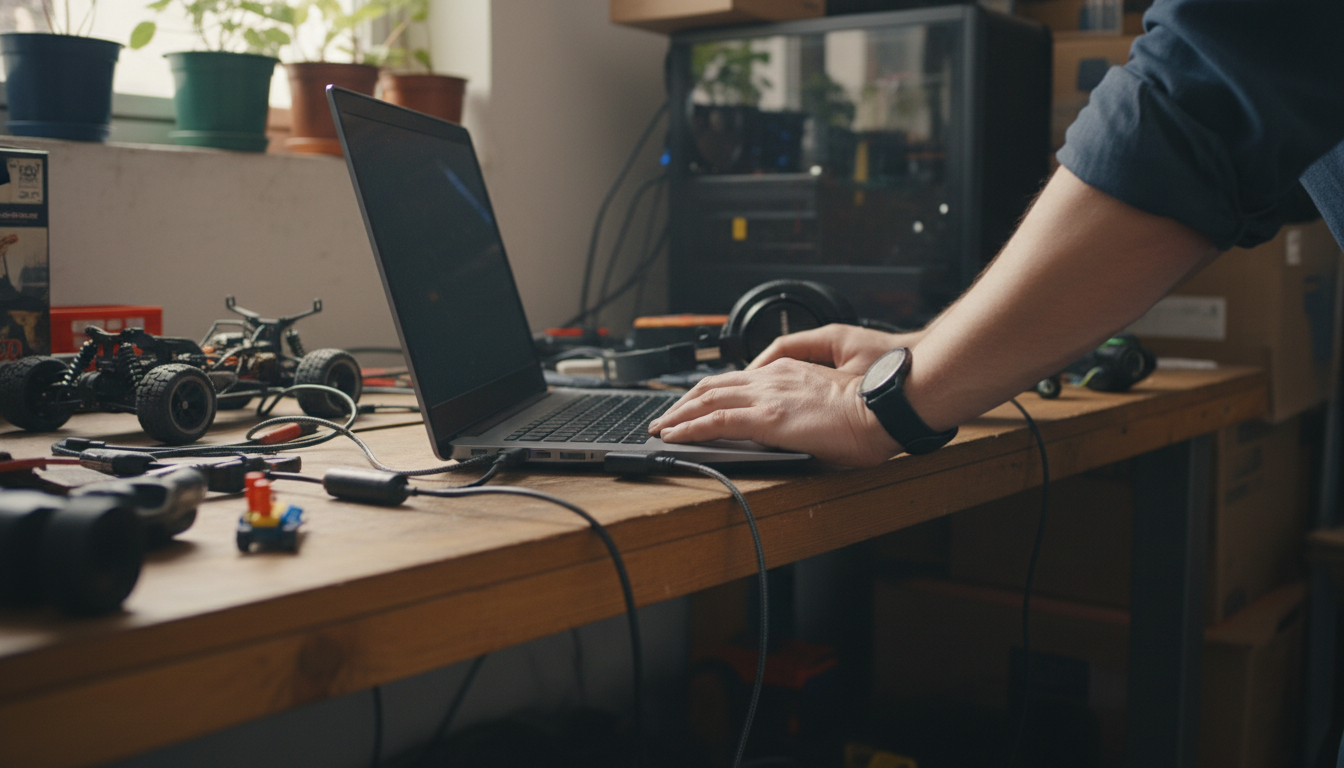
Will a USB wired headset work on a PC or laptop without installing drivers?
Usually, yes. Most USB wired headsets are “plug-and-play” on Windows, macOS, and many Chromebooks because they follow the USB Audio Class standard. When you plug the headset into a USB port, the operating system typically recognizes it as a new audio device and automatically loads built-in drivers, so you can start using the microphone and headphones within seconds.
When it works with no driver install
A standard USB wired headset will often work immediately for calls, meetings, gaming chat, and media playback if your computer supports USB audio (nearly all modern PCs and laptops do). You may only need to select the headset as the default input/output device in your sound settings. On Windows, check Settings > System > Sound. On macOS, go to System Settings > Sound and choose the headset for both Input and Output.
When you might be prompted to install something
You may see an optional driver or app download if the headset includes advanced features such as customizable EQ, sidetone, programmable buttons, firmware updates, or enhanced noise-canceling controls. In those cases, the headset can still function for basic audio without extra software, but you might not get access to the full feature set until you install the manufacturer’s utility.
Common setup issues (and quick fixes)
If you plug in a USB headset and get no sound or mic input, it’s usually a settings issue rather than missing drivers. Confirm the headset is selected as the active device, raise the volume, and check microphone permissions (especially on macOS and in specific apps like Zoom or Teams). Also try a different USB port and avoid unpowered hubs if the headset draws more power than the hub can provide.
For more tips on getting clearer calls and choosing the right USB wired headset for PC or laptop use, see this guide: https://hovira.com/blog/guide-clear-calls-usb-wired-headset-noise-cancel-mic-pc-laptop/.
FAQ
Why does my USB headset mic work but I can’t hear audio (or vice versa)?
This usually happens when your computer is using different devices for input and output. Set the USB headset as both the default microphone and default speakers/headphones in your sound settings, then recheck the app’s audio device selection.













Leave a comment