

Stylus Compatibility: What Works on Each Device
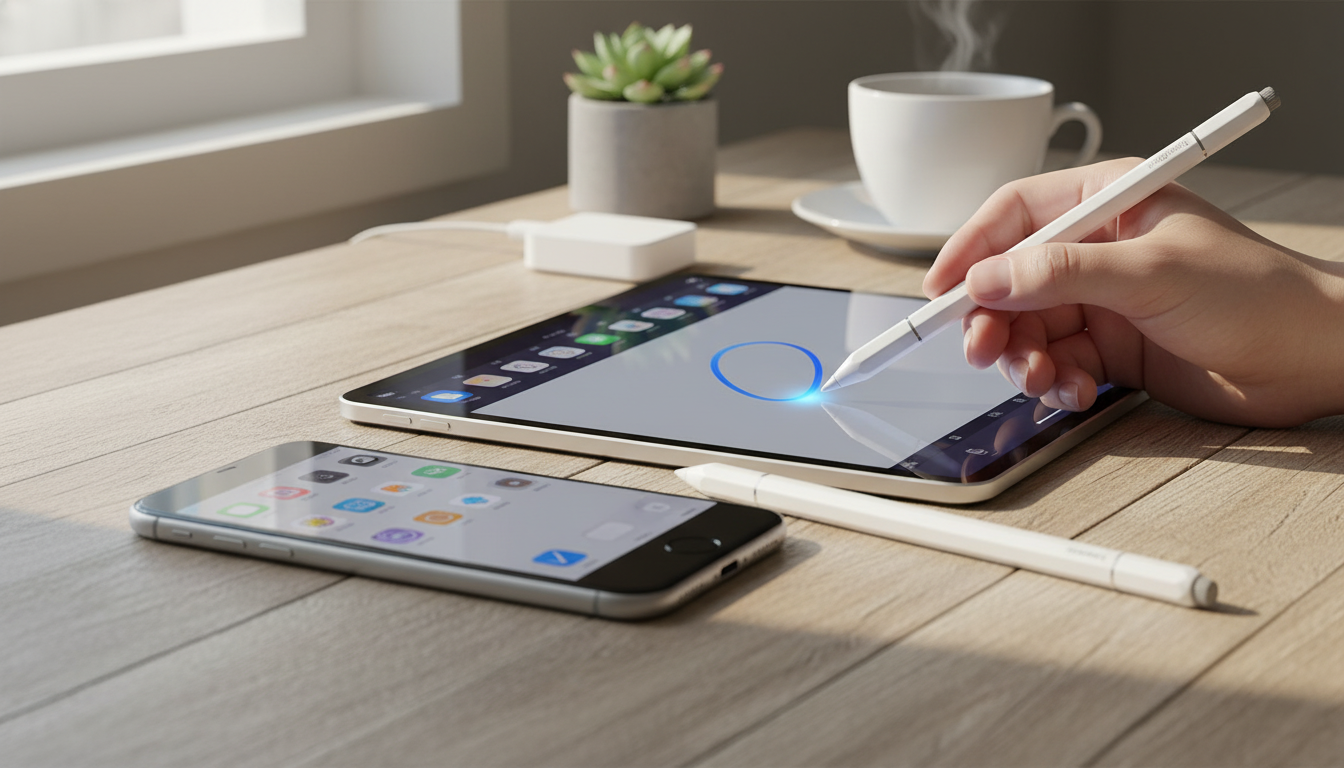
Can a stylus pen be used on any device?
Not every stylus works on every device. Stylus compatibility depends on two things: the kind of touch screen your device has and the type of stylus you’re using. Our team recommends matching the stylus category to your device first, then narrowing down by features like palm rejection, tilt support, and magnetic attachment.
1) Universal “capacitive” stylus tips work on most touchscreens
If your device uses a standard capacitive touchscreen (most smartphones and tablets do), a simple rubber- or mesh-tip capacitive stylus will usually work right away—no pairing, no charging. It behaves like a finger, so it’s broadly compatible with iPhone, iPad, Android phones/tablets, and many touch-enabled laptops. The trade-off is precision: you won’t get pressure sensitivity, and palm rejection typically isn’t available.
2) Active styluses are device-specific
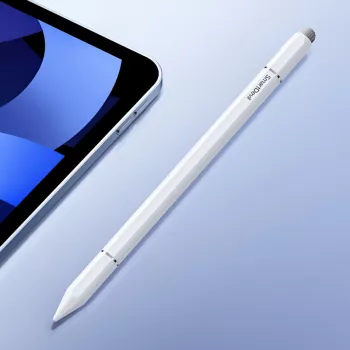
Active styluses include electronics that communicate with the screen, which can unlock finer lines, palm rejection, and tilt/pressure features. Because they rely on specific protocols, an active stylus made for one ecosystem may not work on another. For example, an Apple Pencil-compatible stylus is designed for supported iPad models, not for iPhones or most Android tablets. Likewise, Microsoft Pen Protocol (MPP) is generally for certain Windows devices, and USI is used by some Chromebooks and Android tablets.
3) iPad and iPhone differences matter
Many shoppers assume “Apple device” means universal support, but iPad stylus support is model-dependent, and iPhone typically doesn’t support Apple Pencil-style active input. If you want a stylus for iPhone, a capacitive stylus is the safest choice. If you want an iPad drawing or note-taking experience, choose an iPad-compatible active stylus designed for your iPad generation.
How to choose the right stylus quickly
Start by deciding what you need: basic taps and scrolling (capacitive) or writing/drawing with better control (active). Then confirm your exact device model and look for the stylus protocol it supports. If you’re shopping for iPad control, our team also breaks down magnetic stylus benefits and daily-use tips here: https://hovira.com/guide-magnetic-stylus-for-ipad-and-iphone-clean-easy-control/.
FAQ
Do I need a screen protector to use a stylus?
You don’t need one for a stylus to work, but a protector can reduce scratches and add a smoother or more paper-like feel. If you write heavily, it can also help your screen hold up better over time.











Leave a comment